Projects
Make a project, start and stop it, and find your way around the project page. What each run state means, and where a project keeps running.
A project is one thing your device does: a plant alarm, a desk clock, a light that follows the weather. PAL writes it, and it runs on your board.
Make a project
On Home, press New project. Describe what you want in your own words, or pick one of the ideas shown. Suggest ideas asks PAL for more ideas, and uses credits.
PAL builds the project and saves it. It doesn't start until you press Start. To change it later, open the project and press Ask PAL.
Start and stop
The button at the top of the project page starts the project and says how it's doing.

| It says | What it means |
|---|---|
| Start | The project is saved and not running. Press to start it. |
| Starting… | The board is starting the project. This takes a few seconds. |
| Running | The board is running the project. Press to stop it. |
| Running in the cloud | The board can't run projects itself, so Palpable runs it while the board is online. |
| Starts when your board is back online | You pressed Start while the board was offline. It starts when the board reconnects. |
| Can't reach its modules | The board is on, but the parts don't answer. Check the cable. |
| Didn't start on your board | The board didn't start it within 30 seconds. Ask PAL what went wrong. |
| Can't run projects on your board yet | This board's parts work from the app, but it can't run a project yet. |
If you press Start while the board is offline, the app asks first. Choose Run when your board is back to start it as soon as it reconnects.
The project page
The middle shows the project's parts and what it does with them. Ask PAL opens the project's chat with PAL. The side has the project's tabs:
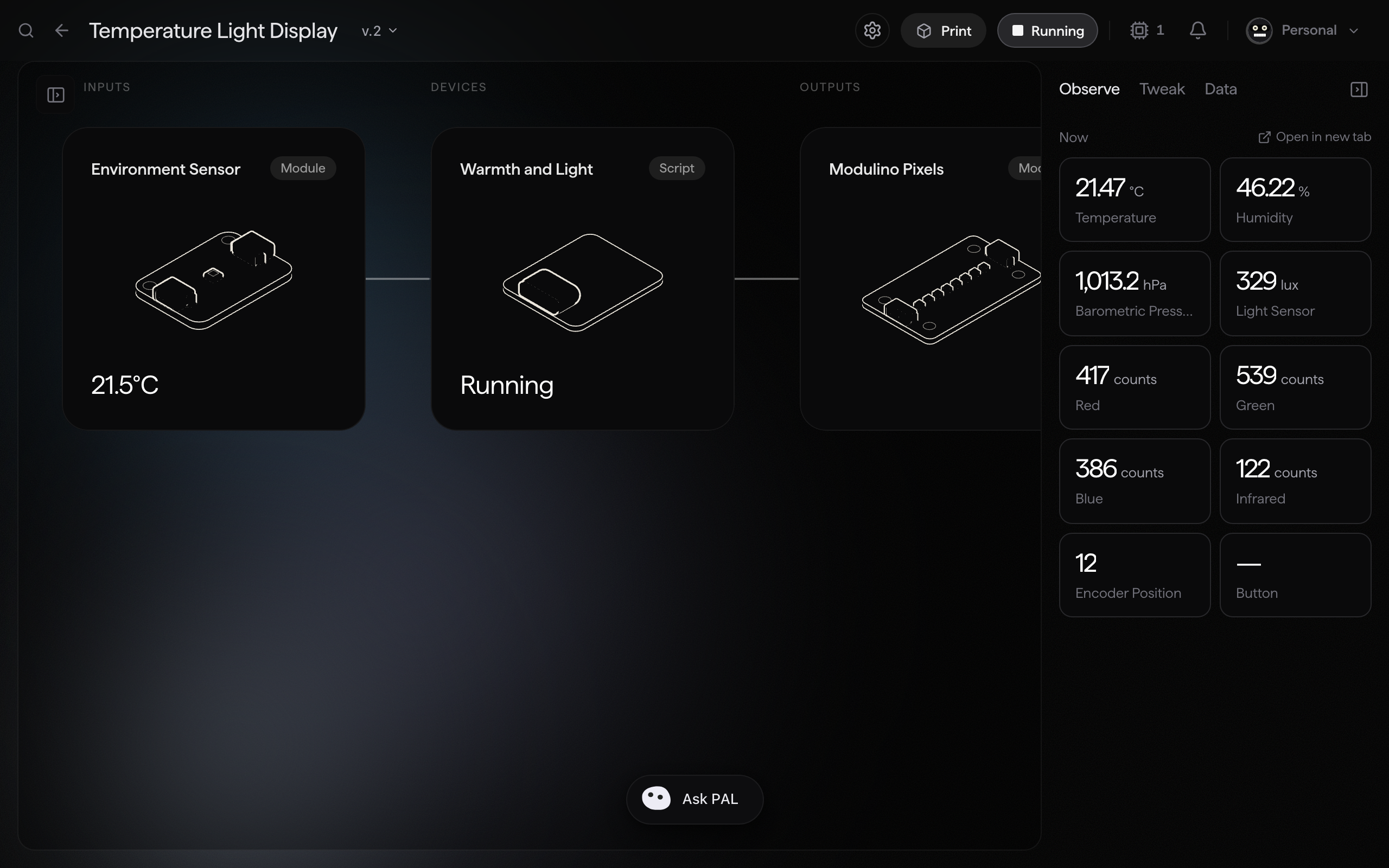
- Observe shows what the project is doing now, such as its latest readings. It appears once the project has something to show.
- Tweak has the project's settings, such as a temperature limit or a color. Below them are Saving data, which sets how often readings are saved, and Code, where you can read what PAL wrote.
- Data shows the readings the project saved over time, under History and Saved data. You can Export them or delete them.
On a phone, the same tabs open from the bottom of the screen.
Tweak settings
PAL gives a project settings for what you'll want to change yourself. They're the first thing under Tweak.
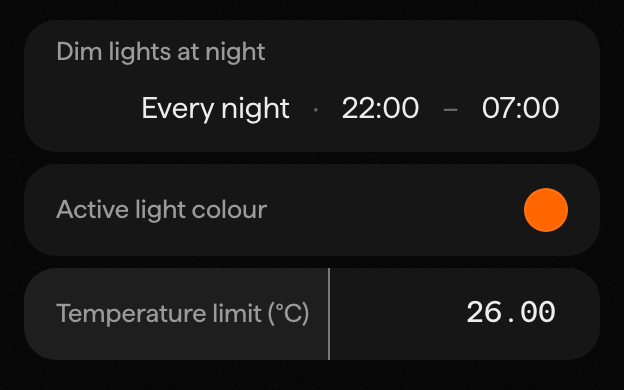
A setting can be a number or a slider, a switch, a choice, a color, a time, a time window such as quiet hours, or a schedule. Some projects also have a Location, for weather, or the lamps a project switches.
A change applies straight away. There's no Save button, and the project doesn't restart. If the board can't be reached, the setting goes back to how it was and the app says so.
To get a new setting, ask PAL: "Let me change the alarm time myself."
Saved data
A running project saves its readings. Under Tweak, Saving data sets how:
- Save a reading every: second, minute, hour, day or week.
- As the: average, median, lowest or highest of what was read in that time.
- Keep the last: a day, a week, a month, a year, or always.
By default a project saves one reading an hour, the average, and keeps a month. Keeping more than a month needs Studio or Team. Saving every second keeps at most a day; choosing a longer interval again keeps a month. A change applies within a minute.
A change that keeps less than before deletes the older readings within the hour, so the app asks first and says how many will go. Export them first if you want a copy.
The Data tab shows the readings over a day, a week or a month. Choose which readings to draw; each has its own scale, and the choice is remembered for the project. Export downloads them as a CSV file, for a spreadsheet. Delete… removes everything older than a week, or everything.
Observe shows one tile for each reading the project's modules send. A module that is unplugged shows as Not connected.
Versions
Each time PAL changes a project, it gets a new version: v.1, v.2 and so on, next to the project's name. Open it to see the project's history. Choose a version to look at the project as it was then, and press Restore to go back to it. Newer versions stay in the history.
A case
Print at the top of the project page designs a 3D-printed case around the project's board and parts. See Print a case.
Project settings
The gear button at the top of the project page opens Project settings:
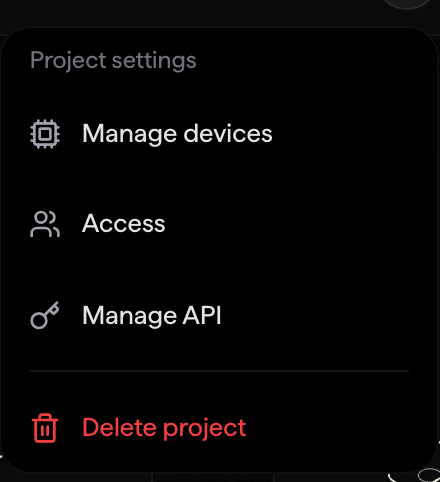
- Manage devices: choose which boards the project uses, or move it to another board.
- Access: who else can see or control this project. See Sharing and workspaces.
- Manage API: keys that let your own apps read and control the project.
- Move to workspace: move the project to a team you belong to. This shows only when you're in a workspace.
- Delete project: delete it for good. The app asks you to confirm.
Where a project runs
Most boards run projects on the board itself. They keep working when the internet is down.
- On the board, also offline: Raspberry Pi, Arduino UNO Q, and ESP32-S3 boards with PSRAM.
- Only while online: other ESP32 boards. Palpable runs the project for them while they're connected.
A running project keeps running when you're out of credits.
Working with PAL
How to ask PAL, the AI in Palpable, to build or change a device. What PAL can change for you, what it asks first, memory and voice.
Screens
Put something on a screen plugged into your board. Ask PAL, and it designs the screen. What shows when nothing runs, when the board is offline, and on e-paper.