Wi-Fi will not connect
What to do when your Raspberry Pi, Arduino UNO Q or ESP32 board can't join your Wi-Fi network in Palpable, or lost it after a router or password change.
What you see
- Your device hasn't connected yet after setup.
- (your board's name) lost Wi-Fi, with a Reconnect button. This shows on a Raspberry Pi that was online before.
- Or the board shows as offline after you changed your router or Wi-Fi password.
Quick checks
Is it a 2.4 GHz network?
A Raspberry Pi Zero 2 W and ESP32 boards only use 2.4 GHz Wi-Fi. If your router shows a name ending in "5G", choose the other one.
Is the password right?
Check for typos, spaces and capital letters. A Wi-Fi password has at least 8 characters.
Is the country right?
Each saved network has a country. It decides which channels the board may use. Check it under Settings → Wi-Fi.
Is the board in range?
Move it closer to your router, and out of any metal box.
Home networks with a password work. Networks that also ask for a username, as at many offices and schools, do not.
Give a Raspberry Pi a new network
When a Pi lost Wi-Fi, press Reconnect. The Pi puts up its own temporary Wi-Fi network.
- On your phone, join the network the app shows, with the password it shows.
- Your phone opens the Pi's setup page. If it doesn't, open the address the app shows.
- Enter your home Wi-Fi name and password there. The Pi joins it and comes back online.
You can also make a new card. Open the board, choose Manage, then Re-flash card.
Testing Wi-Fi on a Raspberry Pi?
Unplug any USB data cable first. A data cable in the Pi can disturb its Wi-Fi and make a good board look bad.
Move a board to another network
A board that is online can switch to any network you have saved.
- Open the board and choose Wi-Fi.
- Under Network, pick a saved network in Use network.
- The app says Switching to that network. It can take up to a minute.
To add a network first, choose Your saved networks.
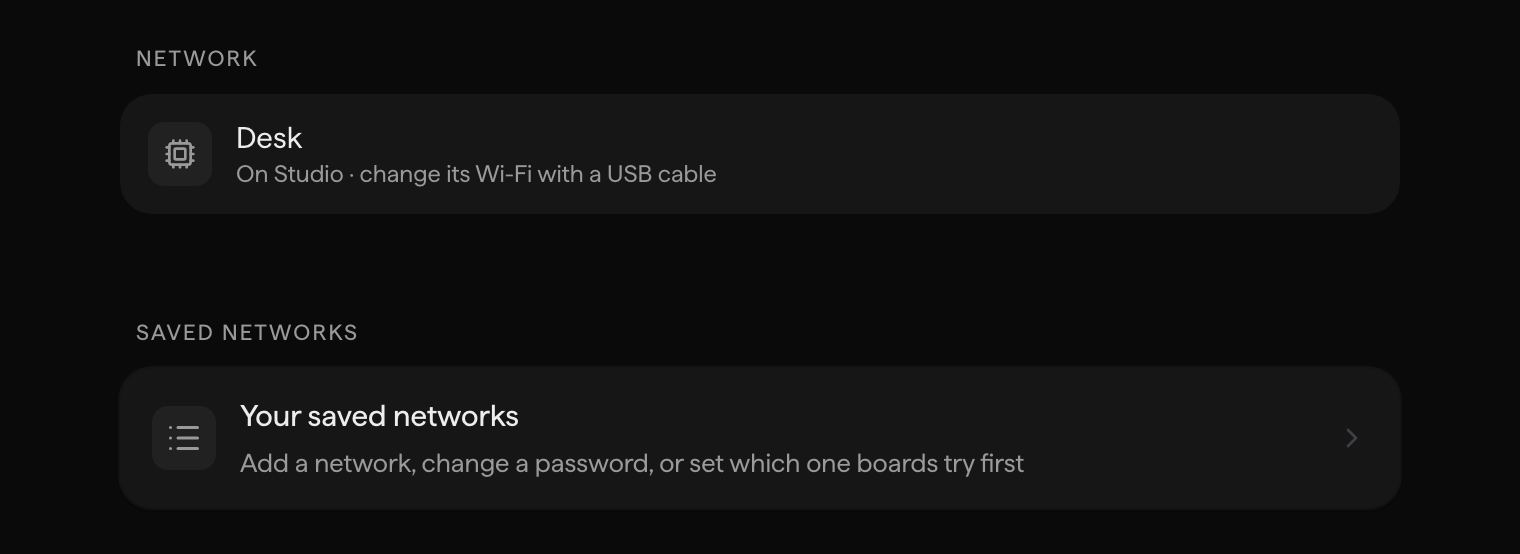
What the row under Network says tells you what is possible:
- Update the board to switch networks here: the board's software is too old. Update it on the board's Software page, then try again.
- Change its Wi-Fi with a USB cable: plug the board into your computer and follow the steps in the app.
- Offline: the board can't switch while it's offline. Use Reconnect on a Raspberry Pi, or set the board up again.
Other boards
If an Arduino UNO Q or an ESP32 board can't get online at all, set it up again with the right network. See Build your first device.
Still not connecting?
Ask PAL in the app. It can see your board and what it reports. Or ask on Discord.
Setup is taking a long time
What to do when Palpable is still waiting for your new Raspberry Pi, Arduino UNO Q or ESP32 board to come online after setup.
My project does nothing
What to do when a Palpable project doesn't start, doesn't react, or nothing happens on your board, and what the project's Start, Running and other labels mean.